Implement Header-Designs #6

Open
opened 2025-11-25 15:20:09 +00:00 by Stephan · 3 comments
Owner

Recreate Header-Designs with medusa ui components and custom components.

Update JSON files and Component Map accordingly.

Conclusion:

  • List of added reusable dynamic UI-Components
  • List of special components
  • JSON-Files for each design
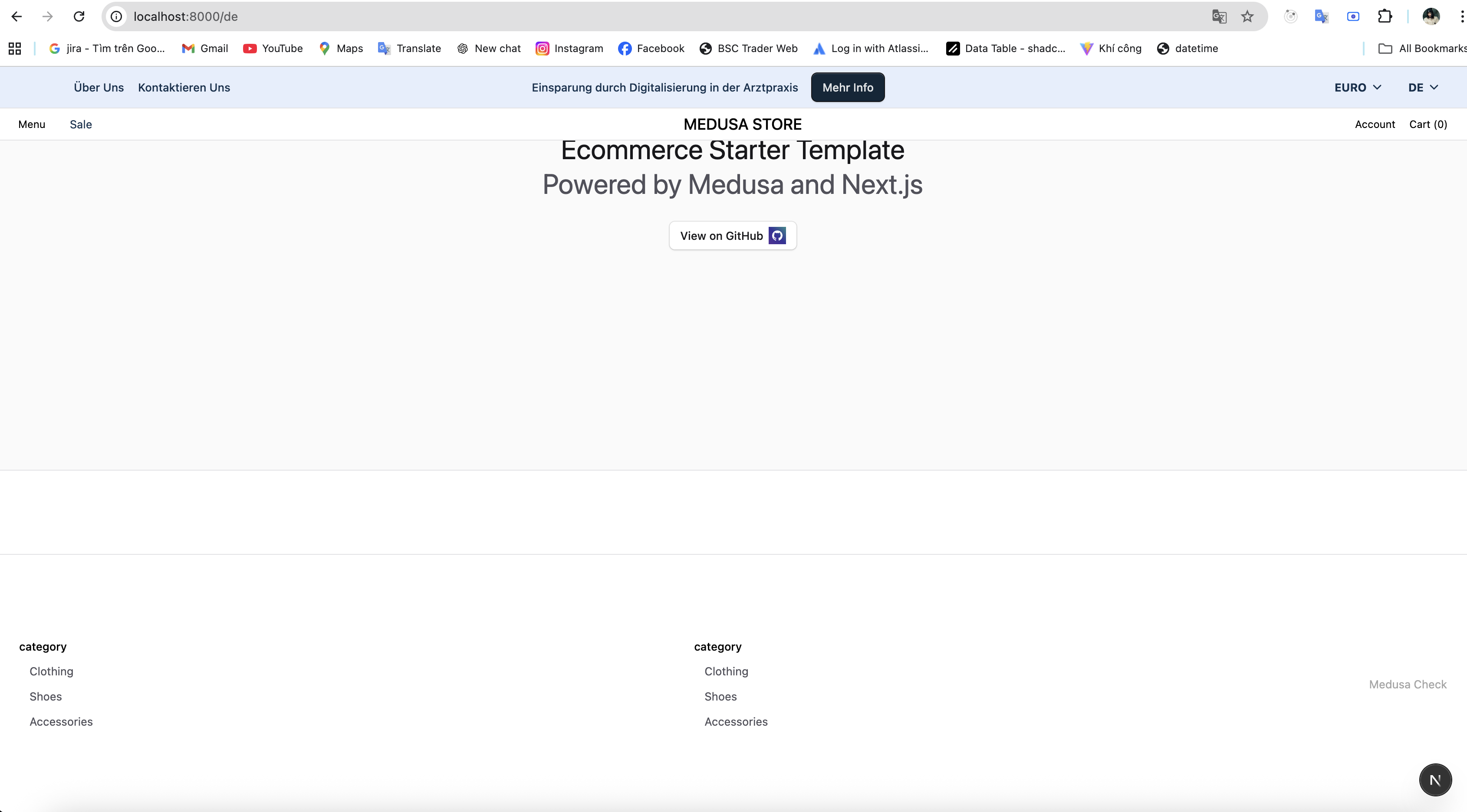
  • Screenshots of progress
  • Screenshot of base starter storefront
Recreate Header-Designs with medusa ui components and custom components. Update JSON files and Component Map accordingly. Conclusion: - List of added reusable dynamic UI-Components - List of special components - JSON-Files for each design - Screenshots of progress - Screenshot of base starter storefront
namds29 added this to the Storefront Shop project 2025-11-27 07:03:47 +00:00
Member

I have push the design json file and layout component in branch namds/refactor-base-layout and here is the list of reuseable dynamic UI component i have added:

  • VtButton
  • VtImage
  • VtNav
  • VtBanner
  • VtCartButton
  • VtDropdown
  • VtSearchInput

And for menu entries, only categories by medusa api are working right now

Screenshot 2025-11-28 at 13.25.54
Screenshot 2025-11-27 at 14.03.06
Screenshot 2025-11-28 at 13.25.05

I have push the design json file and layout component in branch `namds/refactor-base-layout` and here is the list of reuseable dynamic UI component i have added: - VtButton - VtImage - VtNav - VtBanner - VtCartButton - VtDropdown - VtSearchInput And for menu entries, only categories by medusa api are working right now ![Screenshot 2025-11-28 at 13.25.54](/attachments/6f1d0720-c552-4a5b-86de-9242e3442ca7) ![Screenshot 2025-11-27 at 14.03.06](/attachments/b1827d2b-0a1c-455d-a607-1172fe90909c) ![Screenshot 2025-11-28 at 13.25.05](/attachments/92a505f4-8006-448a-b8f4-fe8b4b3099ef)
Member

Start design storefront
image

Start design storefront ![image](/attachments/9841dcc2-0724-40dc-8abd-4028e8988397)
359 KiB
Member

Header — JSON Configuration Guide

This guide explains how to configure the Header block in config/nam.vibentec.design.json. It covers structure, keys, and typical edits without file line references.

Location

  • Defined under layout in config/nam.vibentec.design.json as a top-level Header object.
  • Contains a config block (e.g., sticky) and a children array with header components.

Minimal Structure

{
  "Header": {
    "config": {
      "sticky": true
    },
    "children": [
      { "Banner": { "config": { } } },
      { "Nav": { "config": { } } }
    ]
  }
}

Config Keys

  • sticky: Boolean. When true, the header stays fixed at the top.
  • children: Array of components rendered in the header. Common entries are Banner and Nav.

Banner (Top Bar)

Key fields:

  • variant: e.g., "nav".
  • className: styling of the bar.
  • left / center / right: arrays to place child controls.
    • Left links: Link items with label, href, className.
    • Center links: Link items for promos or CTAs.
    • Right controls: Dropdown for currency and VtCountryCodeSelect for region selector.

Example (add a left link):

{
  "Link": {
    "config": {
      "label": "Neu",
      "href": "/new",
      "className": "text-[13px] flex items-center gap-1"
    }
  }
}

Place this inside Banner.config.left.

Nav (Main Navigation)

Key fields:

  • Container className: overall styling of the nav bar.
  • Left area:
    • Logo: src, alt, className, and objectFit under Logo.config.
    • Primary links: Link.config.label/href.
    • Mega menus: VtMegaMenu.config.navLabel.text and styling.
  • Right area:
    • SearchInput.config.placeholder.
    • AccountButton, Button (wishlist), and VtCartButton icons and classes.

Example (change the logo):

{
  "Logo": {
    "config": {
      "src": "/your-logo.svg",
      "alt": "YourBrand",
      "className": "h-full w-[180px] mr-4",
      "objectFit": "contain"
    }
  }
}

Edit values under Logo.config.

Common Edits

  • Toggle sticky header: set "sticky" in Header.config.
  • Change banner copy/links: edit Link.config.label/href in Banner.
  • Update currency label or options: change Dropdown.config.trigger.text and items.
  • Adjust styles: modify className strings in Banner and Nav.
  • Edit navigation links or mega menu labels: update Link and VtMegaMenu configs.
  • Replace header icons: update icon fields in AccountButton, Button, VtCartButton.

Adding or Reordering Children

  • Header.children is an ordered array; earlier items render above/before later ones.
  • To add a new component, append an object with the component name and its config:
{ "AnnouncementBar": { "config": { "text": "Free shipping over €50" } } }
  • Move items within the array to change render order.

Tips

  • Keep JSON valid (commas, braces, quotes). Use a formatter if needed.
  • Follow existing class name patterns for consistent styling.
  • Use left/center/right arrays to position child items within Banner and similar components.
  • Icons referenced by name (e.g., "User", "Heart", "ShoppingCart") must exist in the icon set.

This guide explains the Header configuration so you can make precise edits quickly.

# Header — JSON Configuration Guide This guide explains how to configure the `Header` block in `config/nam.vibentec.design.json`. It covers structure, keys, and typical edits without file line references. ## Location - Defined under `layout` in `config/nam.vibentec.design.json` as a top-level `Header` object. - Contains a `config` block (e.g., `sticky`) and a `children` array with header components. ## Minimal Structure ```json { "Header": { "config": { "sticky": true }, "children": [ { "Banner": { "config": { } } }, { "Nav": { "config": { } } } ] } } ``` ## Config Keys - `sticky`: Boolean. When `true`, the header stays fixed at the top. - `children`: Array of components rendered in the header. Common entries are `Banner` and `Nav`. ## Banner (Top Bar) Key fields: - `variant`: e.g., `"nav"`. - `className`: styling of the bar. - `left` / `center` / `right`: arrays to place child controls. - Left links: `Link` items with `label`, `href`, `className`. - Center links: `Link` items for promos or CTAs. - Right controls: `Dropdown` for currency and `VtCountryCodeSelect` for region selector. Example (add a left link): ```json { "Link": { "config": { "label": "Neu", "href": "/new", "className": "text-[13px] flex items-center gap-1" } } } ``` Place this inside `Banner.config.left`. ## Nav (Main Navigation) Key fields: - Container `className`: overall styling of the nav bar. - Left area: - Logo: `src`, `alt`, `className`, and `objectFit` under `Logo.config`. - Primary links: `Link.config.label`/`href`. - Mega menus: `VtMegaMenu.config.navLabel.text` and styling. - Right area: - `SearchInput.config.placeholder`. - `AccountButton`, `Button` (wishlist), and `VtCartButton` icons and classes. Example (change the logo): ```json { "Logo": { "config": { "src": "/your-logo.svg", "alt": "YourBrand", "className": "h-full w-[180px] mr-4", "objectFit": "contain" } } } ``` Edit values under `Logo.config`. ## Common Edits - Toggle sticky header: set `"sticky"` in `Header.config`. - Change banner copy/links: edit `Link.config.label`/`href` in `Banner`. - Update currency label or options: change `Dropdown.config.trigger.text` and `items`. - Adjust styles: modify `className` strings in `Banner` and `Nav`. - Edit navigation links or mega menu labels: update `Link` and `VtMegaMenu` configs. - Replace header icons: update `icon` fields in `AccountButton`, `Button`, `VtCartButton`. ## Adding or Reordering Children - `Header.children` is an ordered array; earlier items render above/before later ones. - To add a new component, append an object with the component name and its `config`: ```json { "AnnouncementBar": { "config": { "text": "Free shipping over €50" } } } ``` - Move items within the array to change render order. ## Tips - Keep JSON valid (commas, braces, quotes). Use a formatter if needed. - Follow existing class name patterns for consistent styling. - Use `left`/`center`/`right` arrays to position child items within `Banner` and similar components. - Icons referenced by name (e.g., `"User"`, `"Heart"`, `"ShoppingCart"`) must exist in the icon set. This guide explains the `Header` configuration so you can make precise edits quickly.
Sign in to join this conversation.
No Milestone
No Assignees
2 Participants
Notifications
Due Date
The due date is invalid or out of range. Please use the format 'yyyy-mm-dd'.

No due date set.

Dependencies

No dependencies set.

Reference: Shop/Shop-Storefront#6
No description provided.